
If you run more than one branch, you already know the pain. Customers need the right venue. Staff need honest open hours. Rooms and kit have to stay free of double-bookings. And nobody wants a second booking tool bolted onto WooCommerce.
WooCommerce Appointments 5.5 is built for that world. You get multiple locations WooCommerce appointments, shared rooms and resources, Google Meet Join links, and a new Availability hub that keeps every open hour in one place.
Here is what ships in this release:
- One Availability hub for General, product, staff, location, and resource hours
- In person and Online locations, including customer-selected branches
- Shared rooms and resources with per-product Capacity
- Google Meet Join links in email, ICS, admin, and My Account
Update from Plugins, then open Appointments → What’s New. Prefer a guided setup? Start with the Locations and Availability docs.
Manage Open Hours in One Availability Hub
Stop hopping between Global Availability tables and buried product tabs. Appointments → Availability is the new home for open hours.
The layout is simple. Pick a layer on the left. Edit rules in the middle. Watch Week at a glance update on the right while the rule stays in focus. Change a From or To time, and the week strip refreshes right away.
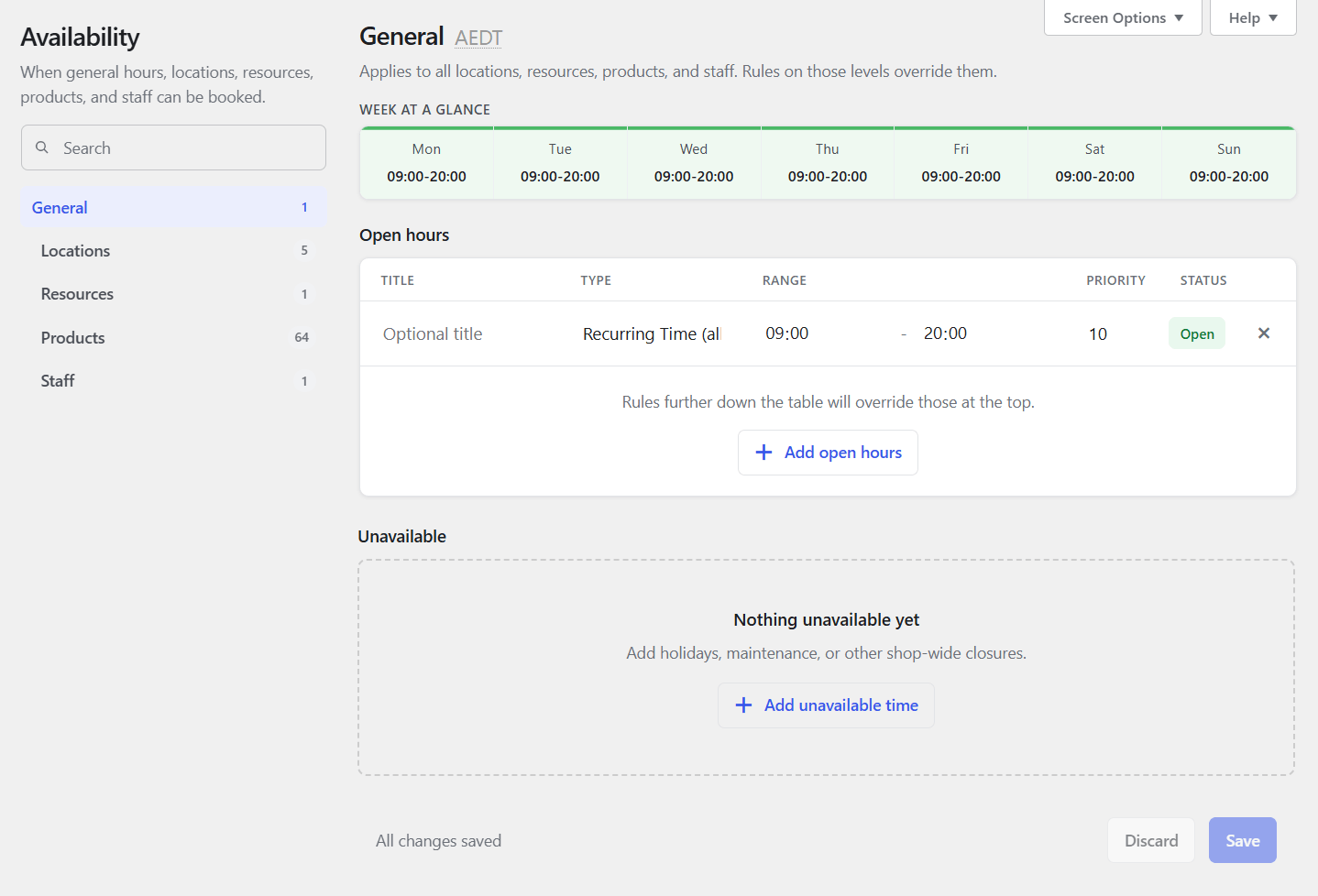
Product Availability still holds Availability Check, Auto-select, and Restrict start days. It also includes a one-click jump into the hub. Staff who only manage their own hours can browse General and assigned layers as read-only, then save where they are allowed.
Multiple Locations WooCommerce Appointments in One Shop
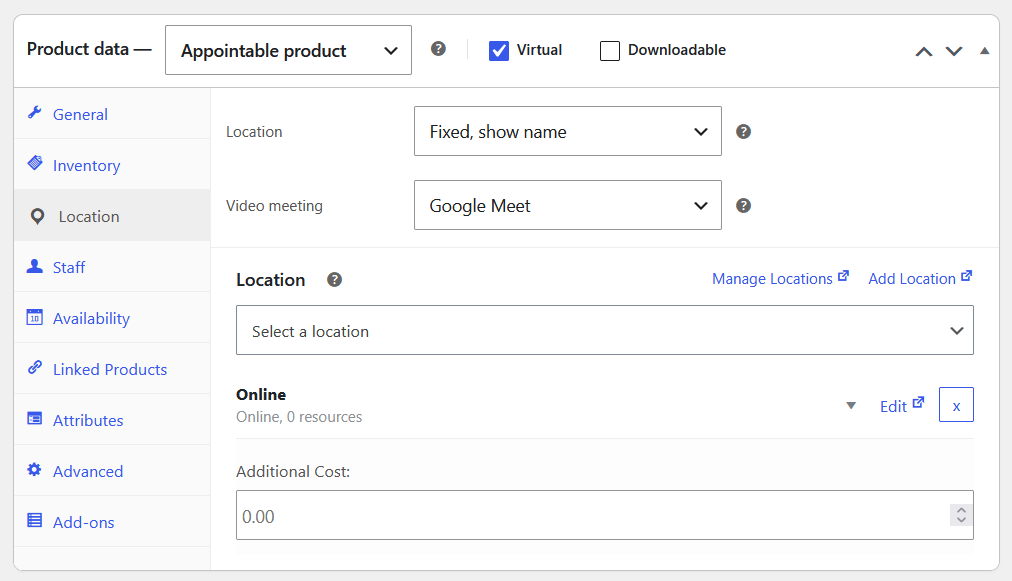
When you are ready, turn on Locations & rooms under Settings → Appointments → Experimental. Create In person or Online venues, assign them on the product, and keep booking inside the shop you already run.
- Fixed (show name) when every booking stays at home base
- Fixed (hidden) when you need capacity or Meet without cluttering cart and emails
- Customer selected when shoppers choose a branch (drag the list; the first venue is the default)
The chosen venue is saved on the appointment for cart, emails, My Account, ICS, and Google Calendar. You can also add an optional per-location cost or discount. That helps when a downtown clinic charges more than a suburb branch.
Customers Choose a Branch, Then See Real Times
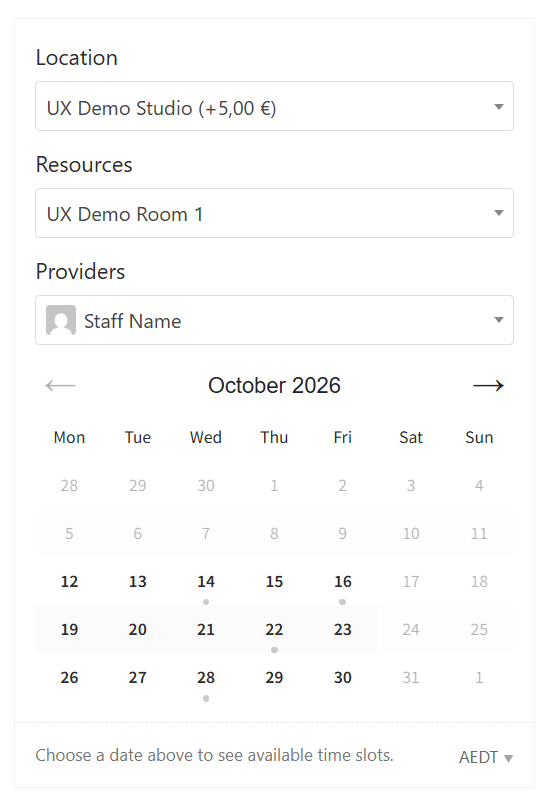
No more “pick a time and hope the room is free.” With customer-selected venues, location comes first. Resources and staff follow. The calendar only shows what that venue can actually take.
The admin create panel works the same way. Change the location, keep the date, and fill the first open time when rooms are ready. That is how multiple locations WooCommerce appointments should feel: one product page, the right branch, and honest availability.
Share Rooms and Resources Across Products
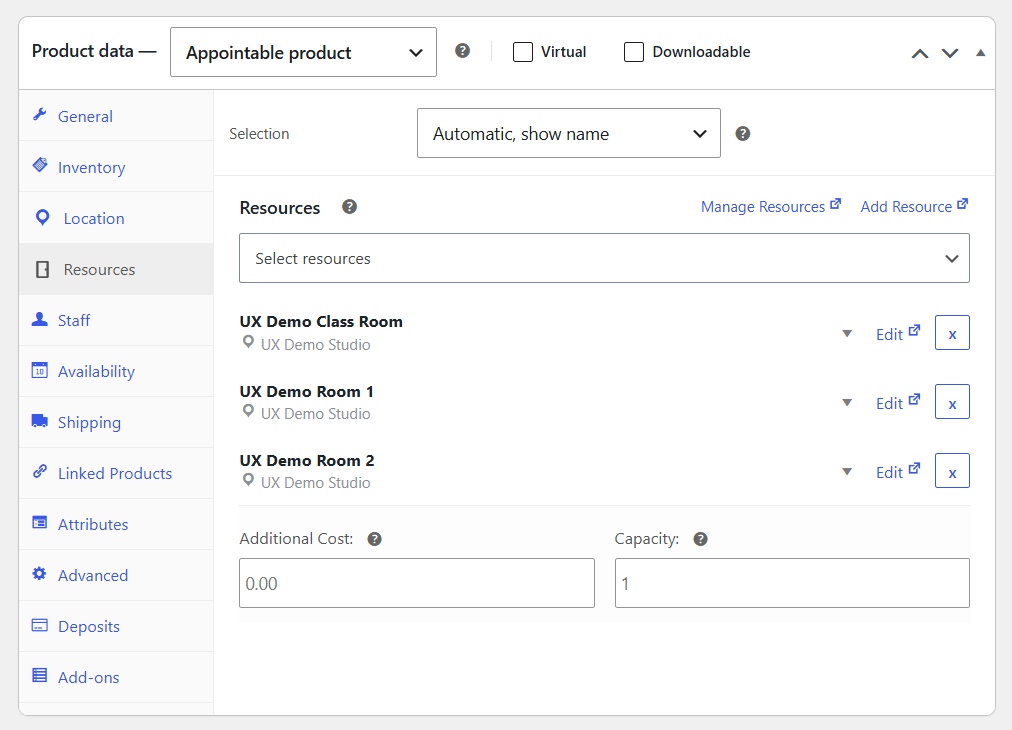
One treatment room can power three services. One court can back a dozen products. Resources are a shared pool. Choose Automatic or Customer selects, add an optional cost, and manage open hours (and Range of days) in the same Availability hub.
Capacity means concurrent use. Set it on the product Resources tab so each service can take a different seat count. Yoga studios and physio clinics already expect that pattern, and you no longer need a separate global resource screen to get it.
How Availability Rules Stack Together
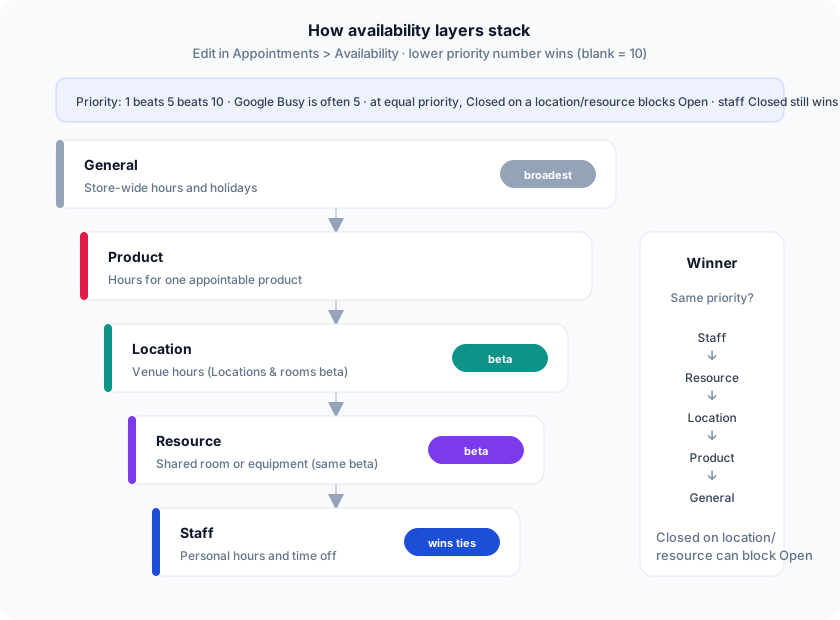
General hours set the floor. Product, location, resource, and staff layers refine what is bookable. If priority is the same, the more specific layer wins. Staff closed still blocks a booking even when the venue is open. You get one clear winner per minute, not a mystery mix of five tables.
Google Meet Join Links Customers Can Find
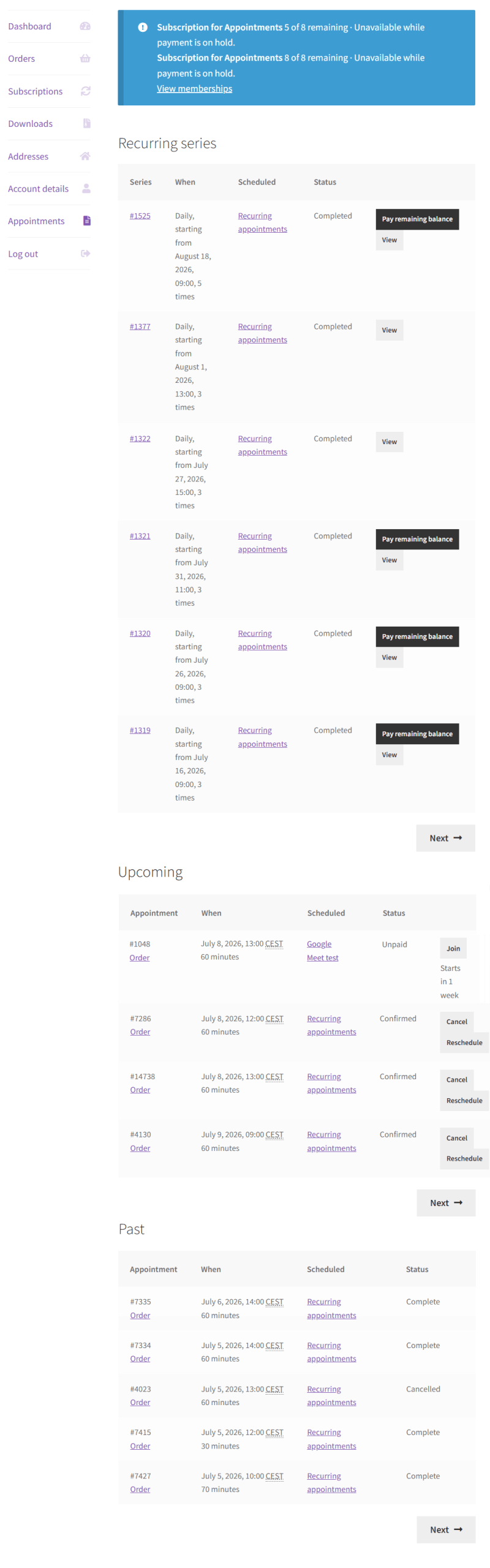
Pair an Online location with Google Meet and Calendar sync. New bookings get a Join link in the confirmation email, ICS, admin panel, and My Account, with a starts-in countdown. The meeting provider is saved at booking time, so a later product change does not orphan yesterday’s room.
Virtual coaching, intake calls, and hybrid clinic follow-ups no longer live in a sticky note under the order.
Create Appointments in the Customer’s Timezone
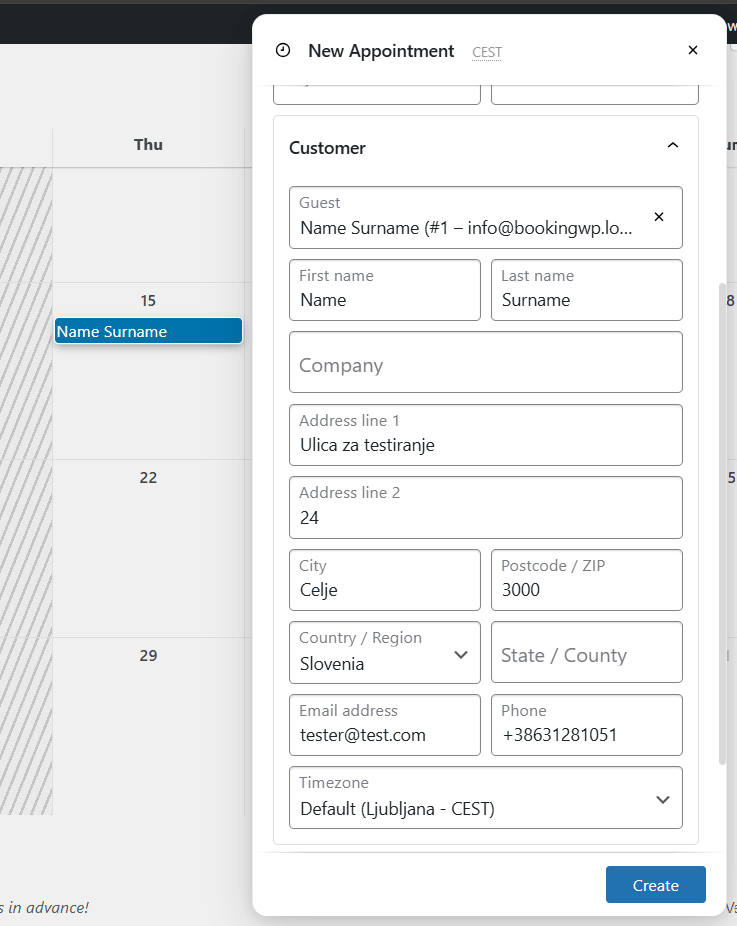
Admin create is built for the desk that books while the phone is ringing. Use one Customer card. Set their timezone so emails and My Account speak local time. Unavailable slots stay blocked unless you deliberately allow them in Screen Options. Memberships discounts apply for the customer you picked, not a ghost quote.
Extra Polish for Busy Shops
- Shared Capacity language across product, staff, resources, and overrides
- Staff permissions for locations, resources, and hub layers
- DST-aware abbreviations and ICS timezones that strict calendar apps respect
- AutomateWoo location and resources variables, plus Germanized invoice line sync
Everything else is in the changelog.
Common Questions
Can WooCommerce Appointments handle multiple locations?
Yes. Turn on Locations & rooms (Experimental), create In person or Online venues, and assign them on the product. Customers can pick a branch, or you can fix one venue (shown or hidden) per product.
Do I need a second booking plugin for branches?
No. Venues, rooms, open hours, cart, emails, My Account, ICS, and Google Calendar stay inside the same WooCommerce Appointments product.
How do Google Meet Join links work?
Use an Online location with Video meeting set to Google Meet and Calendar sync connected. New bookings get a Join link in email, ICS, admin, and My Account (with a starts-in countdown).
What is the Availability hub?
Appointments → Availability replaces the old Global Availability tables. Edit General, product, staff, and (when enabled) location or resource hours in one place, with Week at a glance on the side.
Are locations and rooms on by default?
No. They sit under Settings → Appointments → Experimental so single-venue shops stay simple until a second branch or Meet room is ready.
Get Started
Update WooCommerce Appointments from your WordPress dashboard to 5.5.0 or newer. Then walk through these three steps:
- Hub: open Appointments → Availability and confirm open hours look right
- Locations: enable Locations & rooms, create venues, and assign them on the product Locations tab
- Meet (optional): add an Online venue with Google Meet and Calendar sync, book a test, and check Join in My Account
Guides: Locations · Availability · Changelog
Happy booking.